

Ten steps from the Manage Grants menu to a scored, source-linked record, for grant officers using Flexigrant, from Fluent Technology.
To run a due diligence check in Flexigrant, open AI Due Diligence from the Manage Grants menu. Enter the organisation’s name and, where you know them, its company or charity numbers. Select Run Due Diligence Check. The results show each register’s record, a risk score with a breakdown, and AI-generated notes. Every item links to its source record.
The whole check happens on one screen, but you still read the record and make the decision. The checker gathers the public data and shows you how a fixed formula read it.
Before you start
Have the applicant’s registered name and numbers to hand, because registered names often differ from trading names and a number gives you a clean match. If you do not have the numbers, our guide to finding a company or charity number shows you where to look. You need access to the Manage Grants menu. Check what your due diligence policy says about when to run a check and what to record.
How do you run a due diligence check in Flexigrant?
Open the Manage Grants menu and select AI Due Diligence.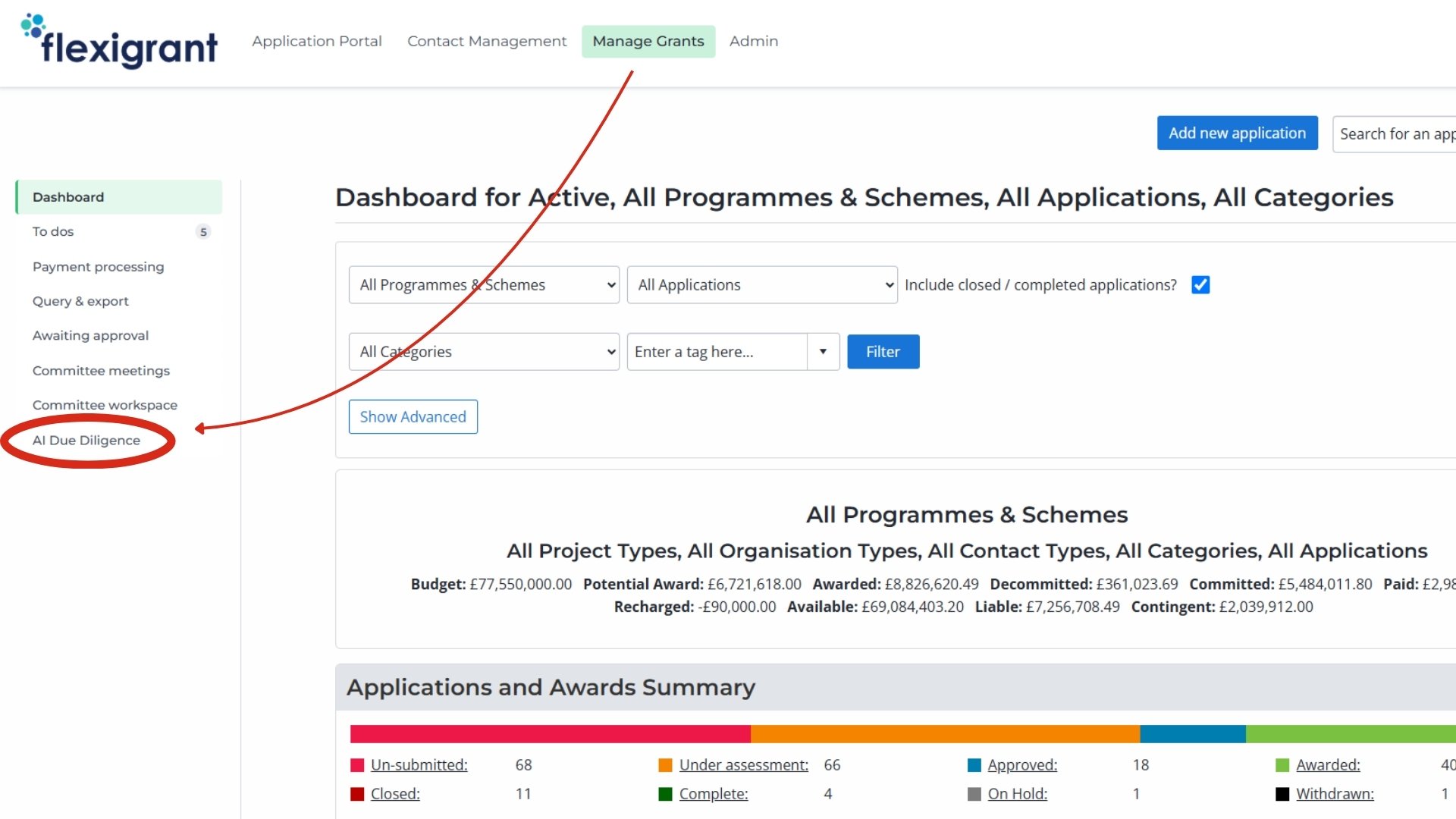
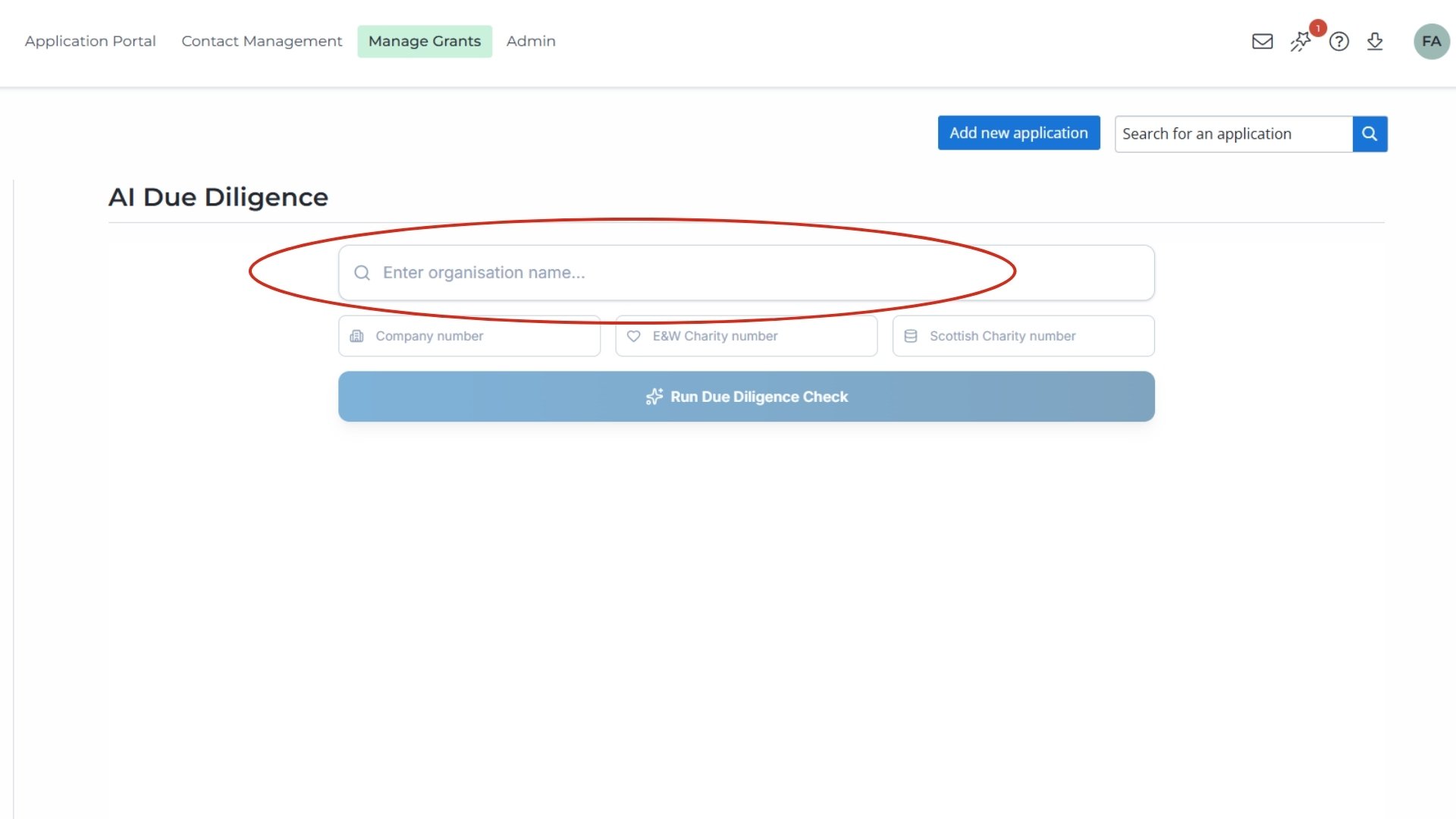
Type the organisation’s name, using the registered name where you know it rather than the name on the letterhead.
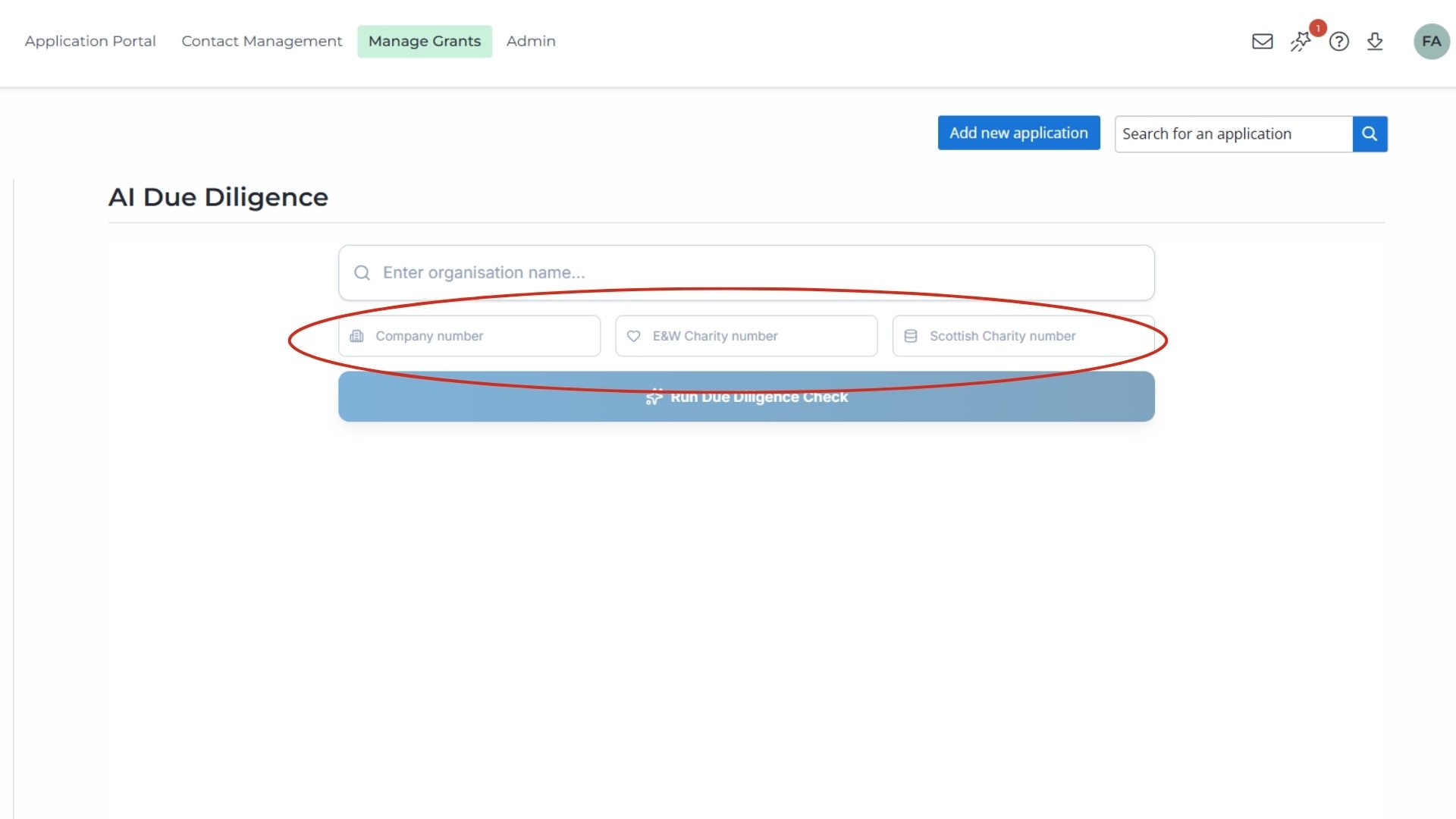
If case yo have the company number, the England and Wales charity number or the Scottish charity number, add them in the searcher. Tip: Even if this is an optional step, enter a number wherever you can. It avoids name mismatches, and the Scottish charity number is the only way to include OSCR in the check.
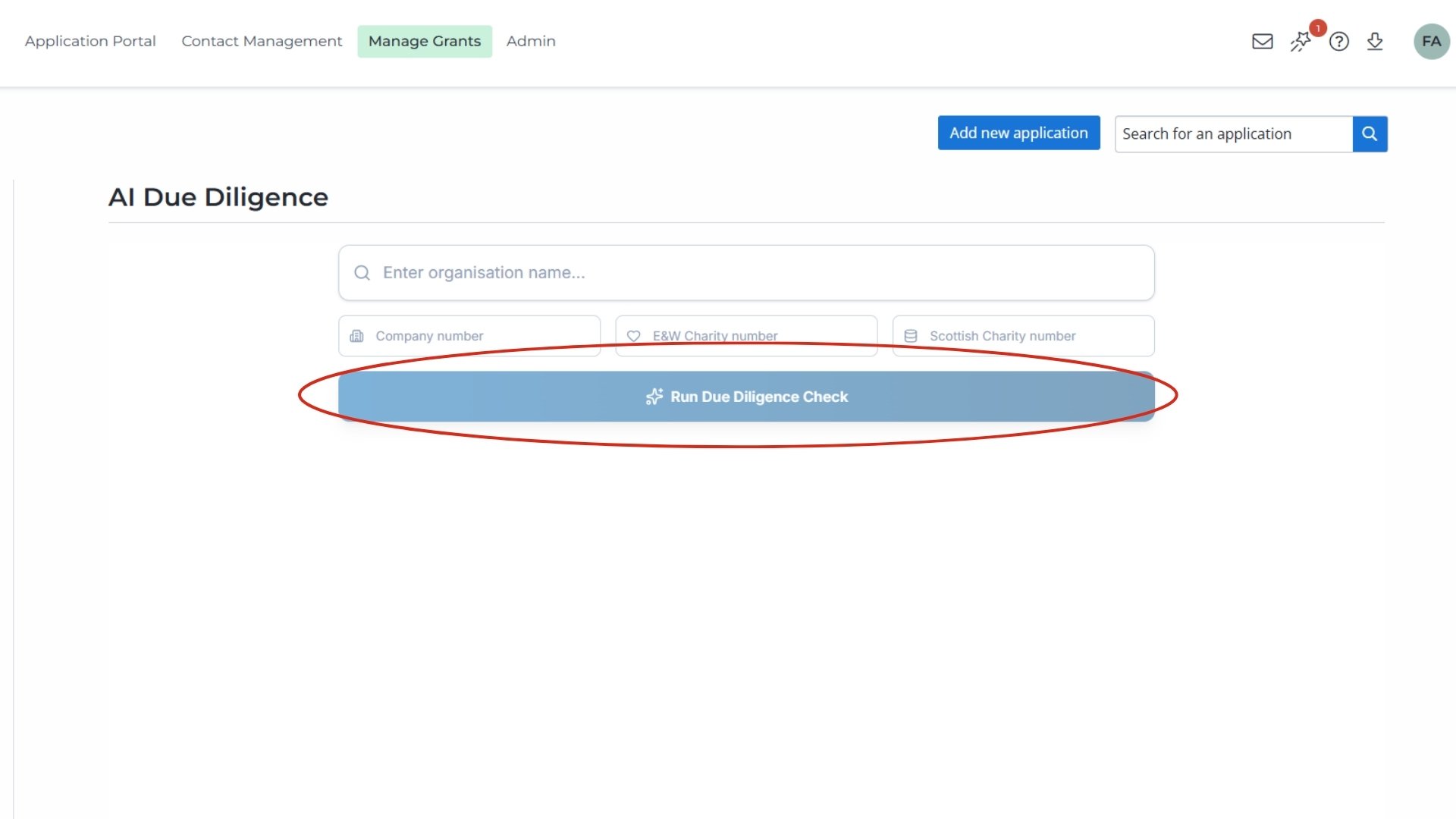
Select Run Due Diligence Check.
Confirm the match by checking that the registered name and number on screen belong to your applicant. If the checker finds no match, check the number for a typing error and run it again.
Read the register sections. You see one section for Companies House and one for the Charity Commission for England and Wales. An OSCR section appears only if you entered a Scottish charity number. Each covers status, financial data, charges (a lender’s legal claim over the organisation’s assets), insolvency data, and the directors or trustees.
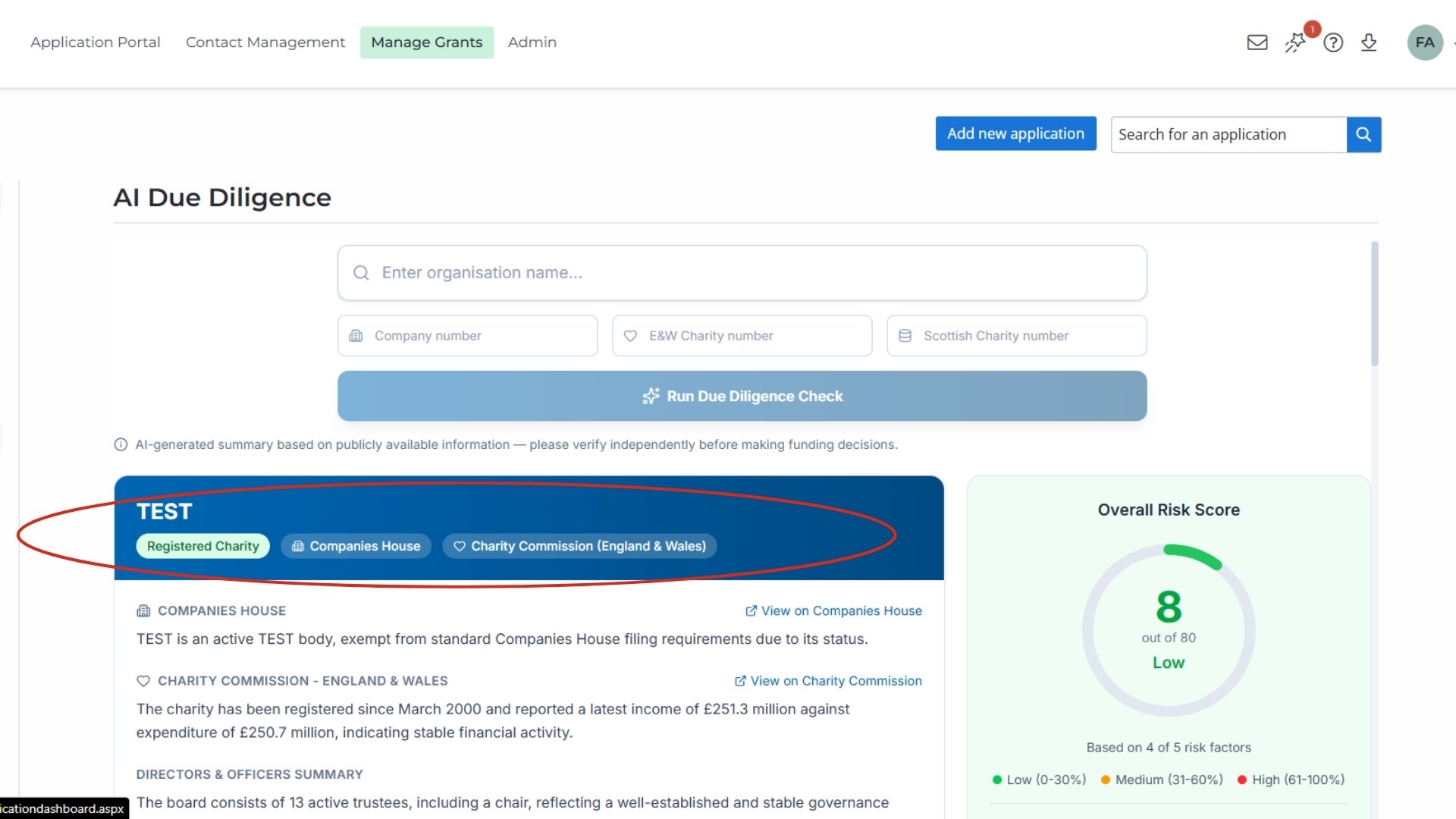
Open the source links, because every item on the page links to the record it came from. Read the original for anything you will rely on, and remember that filed accounts describe a period that has already ended.
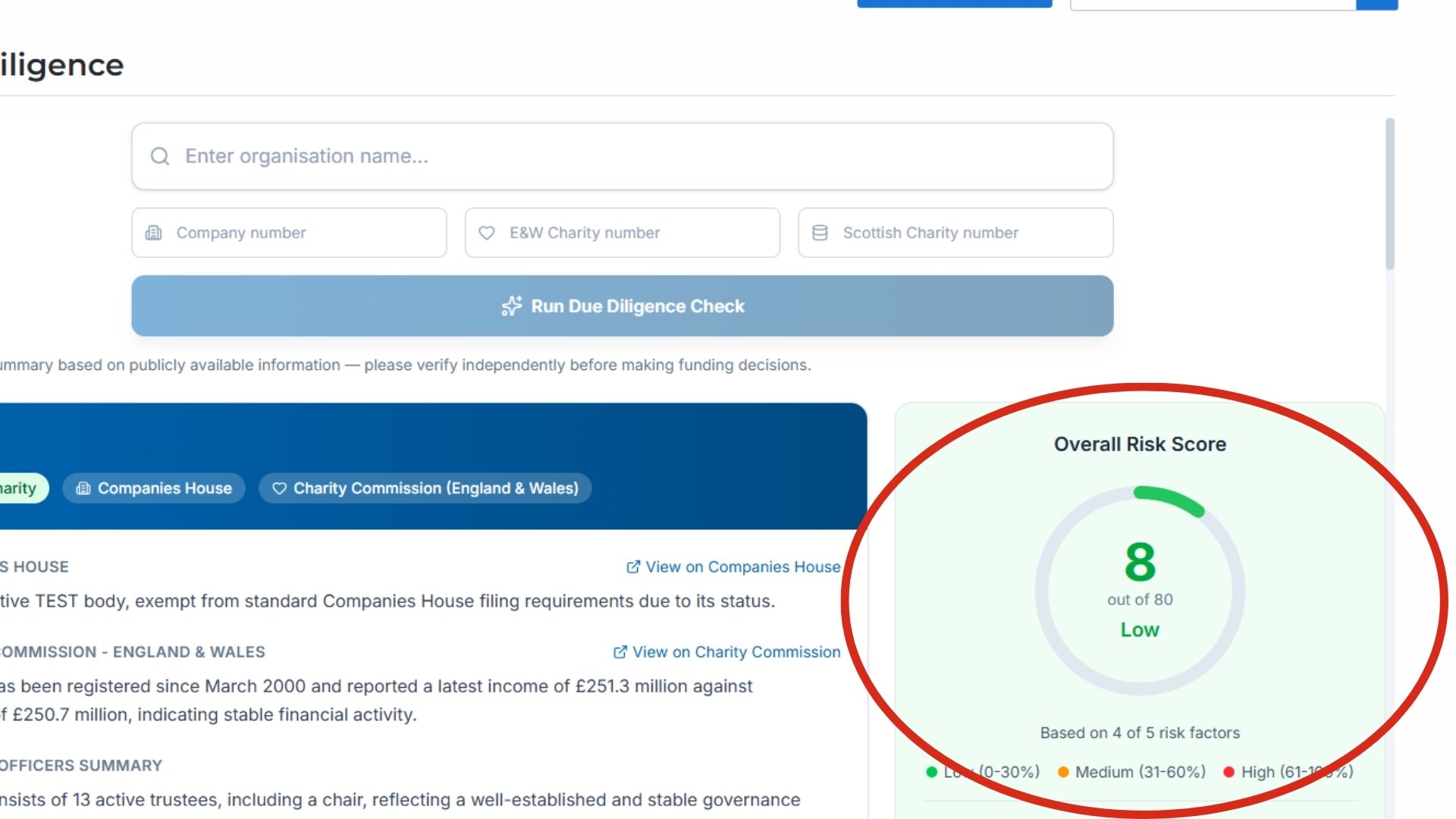
Read the risk score and breakdown, which a fixed formula produces from five factors: filing compliance, financial health, insolvency risk, charges and debt, and governance. The score is shown as a percentage of the factors that could be assessed, in three bands: Low (0 to 30%), Medium (31 to 60%) and High (61 to 100%). The breakdown shows each factor and any red flags.
Read the AI analysis notes, which are labelled as AI-generated commentary. They can misread or over-simplify a record, so check each point against the source before you use it.
Record the check in line with your policy, noting the date, the score, the band and what you verified.
When should you run the check?
Most funders run it after eligibility screening and before the award decision, at the point where their policy calls for a due diligence check. Run it once per applicant per funding round, and note the date, because the registers change as new filings arrive. If the same organisation applies again a year later, run it again rather than reusing the old result.
What does the score tell you?
The score tells you how the fixed formula read the public record on the day you checked, and it is advisory. A High band means the registers hold things worth reading closely, and a Low band means they do not. Neither band approves or declines an application. Your policy sets the thresholds, and you make the decision.
Key takeaways
- Open AI Due Diligence from the Manage Grants menu, enter the name and numbers, and select Run Due Diligence Check.
- Enter a registered number wherever you can. Names differ, and OSCR is searched only with a Scottish charity number.
- Read the register sections, then open the source links for anything you will rely on.
- The score is a fixed-formula reading of five factors, shown as a percentage of the factors assessed, in Low, Medium and High bands.
- The AI notes are labelled and advisory. Check them against the source, and record the check under your own policy.
.jpg)
How to set the parameters for AI in your due diligence process

How to restrict or switch off the AI Due Diligence Checker